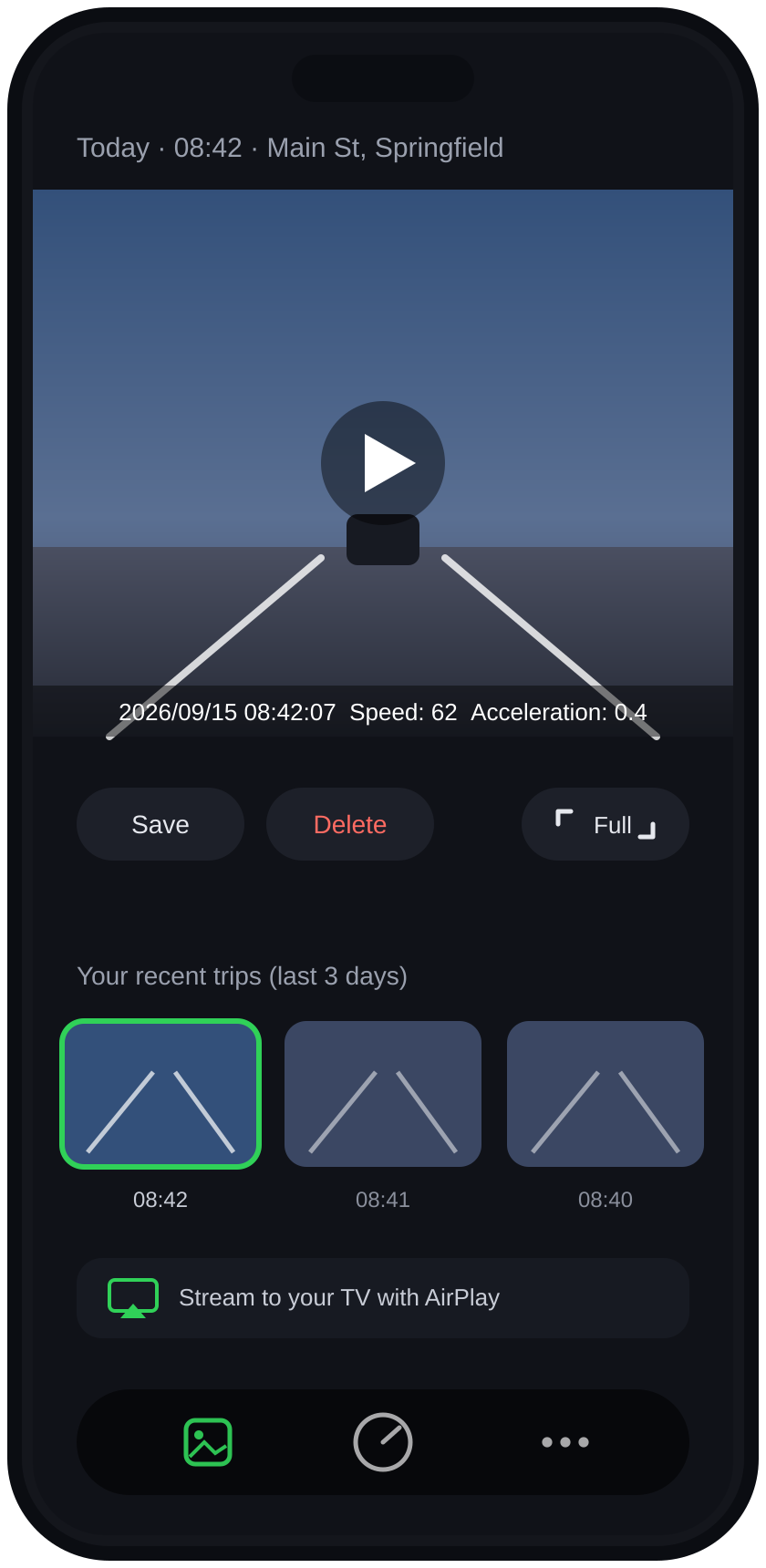
An AI-powered dashcam and driving-safety app that watches the road, records your drive, and warns you the moment something needs your attention — all processed privately on your iPhone.
Mount it, launch it, drive. Good Driver runs neural networks on your iPhone in real time to keep an extra pair of eyes on the road.
🎥
Dashcam recording
Continuously records the road ahead with a date/time, speed, and acceleration watermark; optional location data is embedded as video metadata. Review, save, and manage clips in the built-in Gallery.
⚠️
Real-time safety warnings
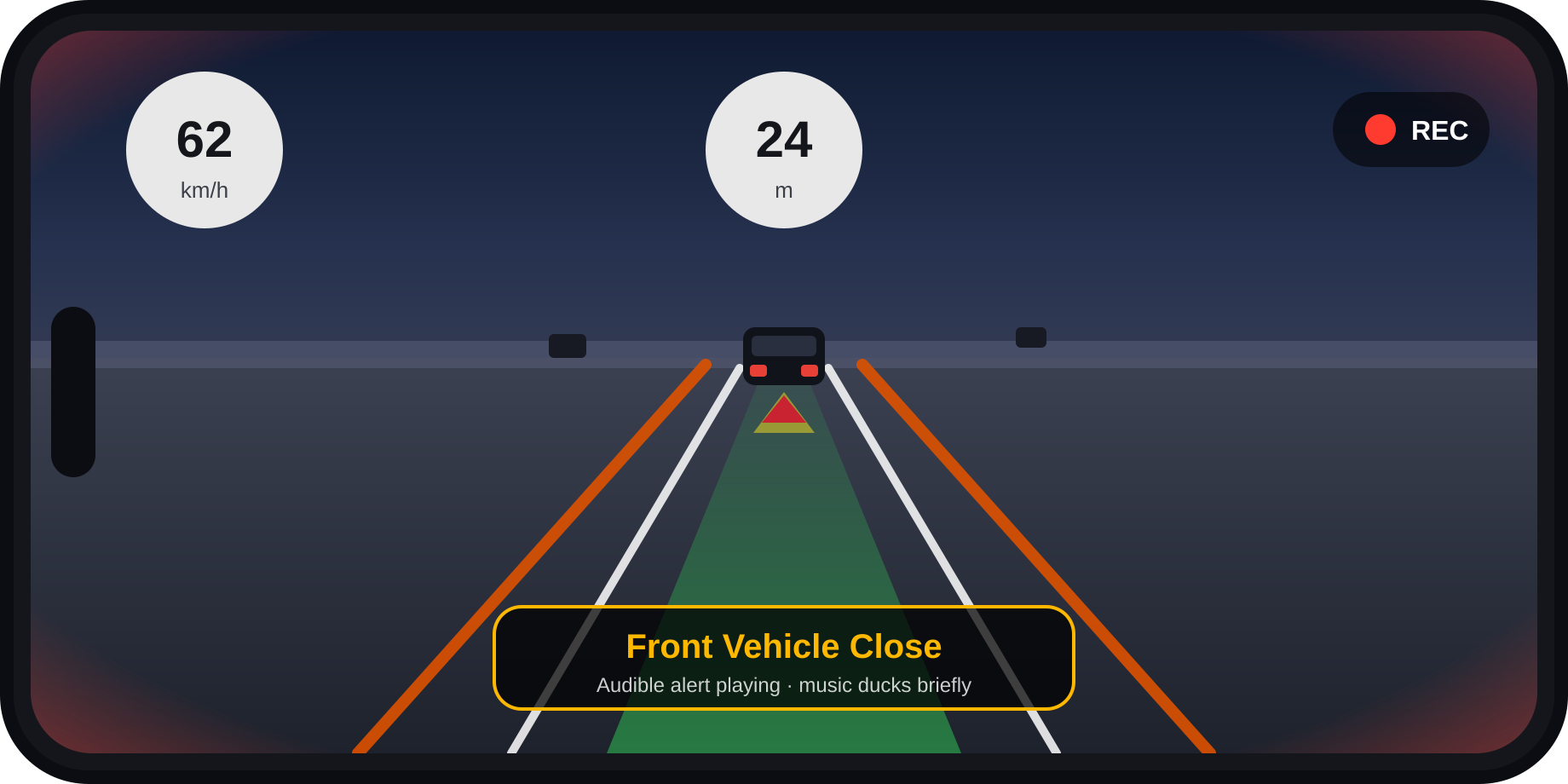
Instant visual and audible alerts: forward collision, lane departure, front vehicle close, hard braking ahead, obstacles, "slow down" prompts, and a gentle chime when stopped traffic moves on.
🛣️
Live AI road view
See what the AI sees: lane lines, road edges, your predicted path, and the lead vehicle highlighted live over the camera feed.
Driving HUD
Current speed and distance to the vehicle ahead, always visible in a clean heads-up display while you drive.
🔒
On-device AI
All video analysis happens on your iPhone's Neural Engine. Your footage never leaves your device.
🖼️
Gallery & playback
Browse recorded drives on a thumbnail timeline, play them back full-screen or stream via AirPlay, and keep only what you need.
What Good Driver is not
Good Driver does not control your car. It never steers, brakes, or accelerates. It is not an autonomous-driving or driver-replacement system — it is an assistant that informs and warns. You are always the driver, fully responsible for the vehicle.
Keep your eyes on the road
Alerts are aids, not guarantees. Detection can be affected by weather, lighting, and mounting. Never rely on the app as your only means of observing traffic, and always follow local laws on device mounting and use.
How to use
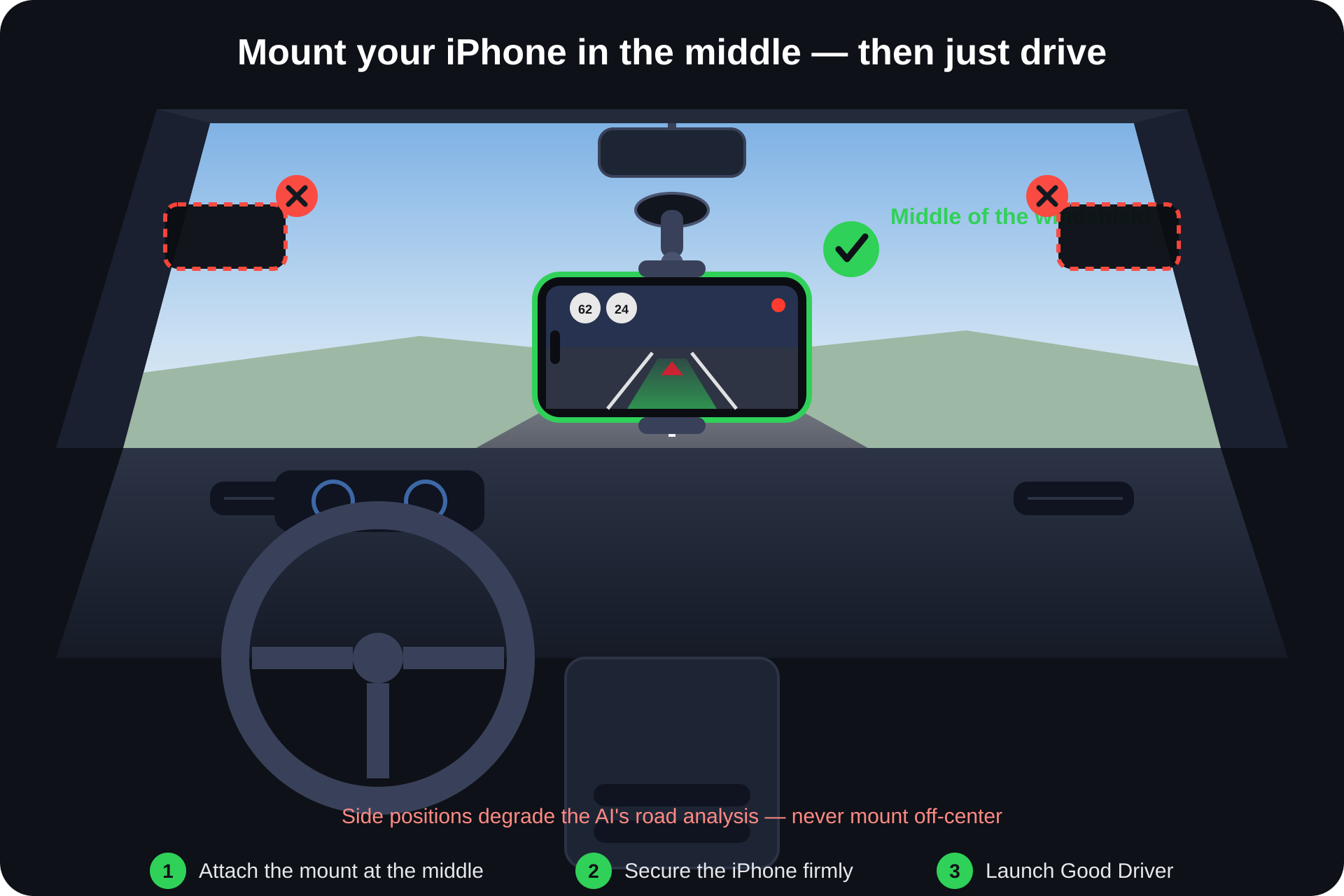
Correct mounting is the one thing Good Driver needs from you — the AI analyzes the road best from the middle of the vehicle.
Mount your iPhone in the middle. Attach a sturdy mount at the center of the center console or the middle of the front windshield, and secure the phone firmly. Off-center positions degrade the AI's road analysis.
Launch Good Driver. On first run, take the short tour, accept the Terms & Privacy Policy, and complete Quick Setup.
Drive. Recording and road analysis start on the Dashboard — warnings appear and sound automatically when needed.
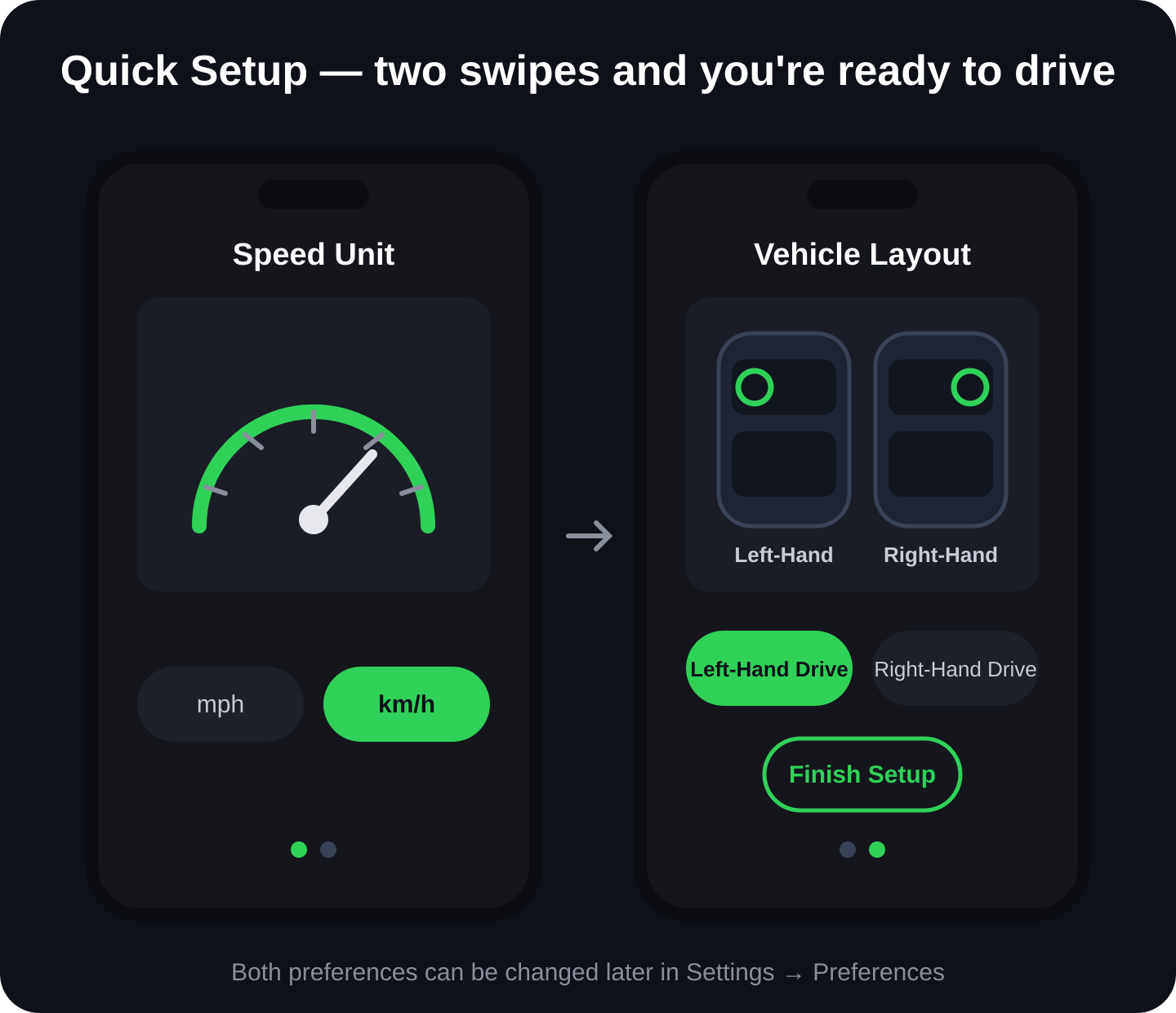
Quick Setup — two swipes
Pick your speed unit and tell the app which side your steering wheel is on. That's it.
How to configure
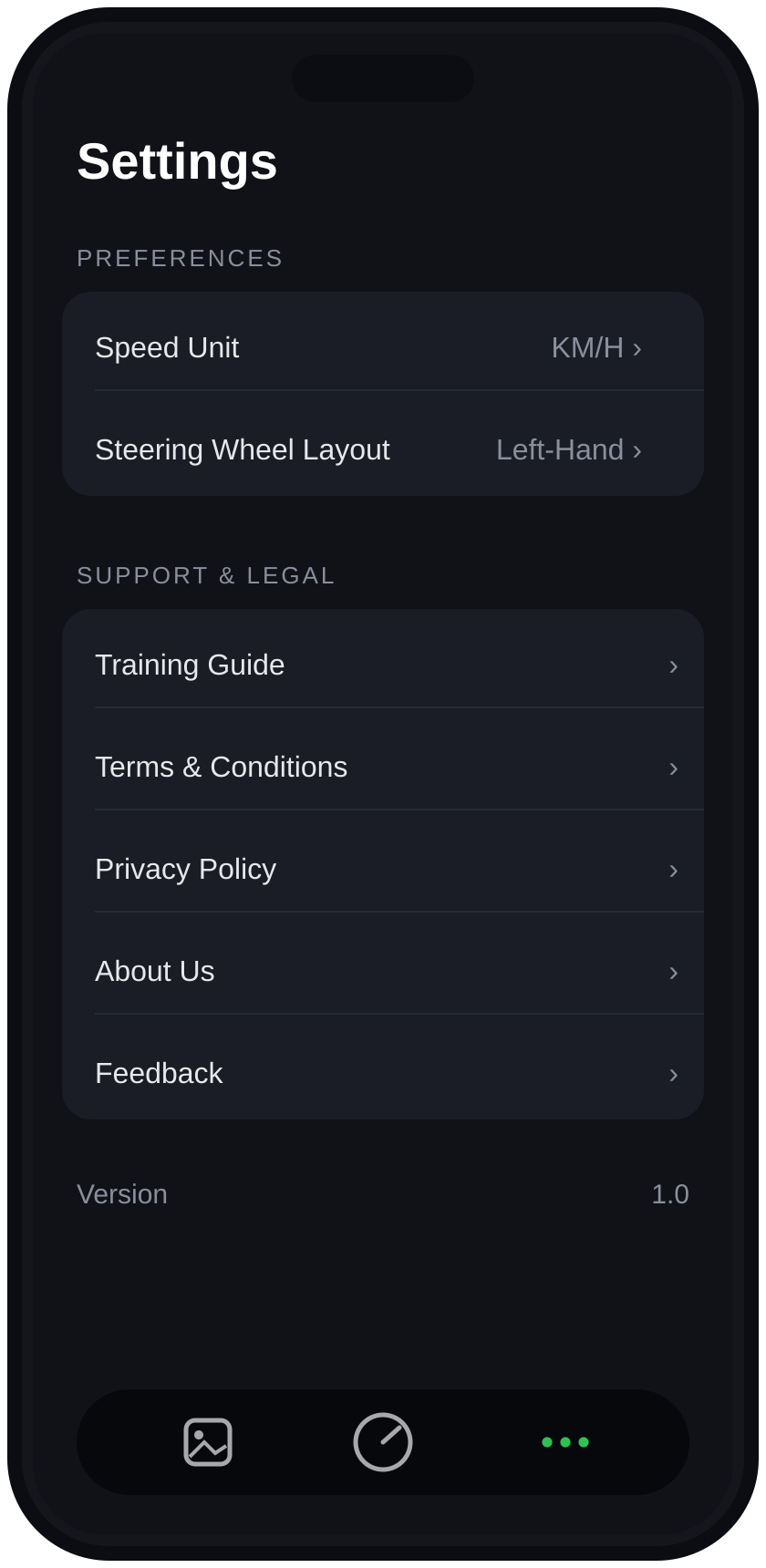
Everything from Quick Setup — and more — lives in Settings.
Speed Unit
Switch between mph and km/h anytime; the HUD and video watermark update instantly.
Steering Wheel Layout
Left-hand or right-hand drive — so guidance matches your vehicle.
Fixed center mounting
Mounting isn't a setting: always secure your iPhone with a mount in the middle of the vehicle — center console or middle of the windshield.
Support & Legal
Training Guide, Terms & Conditions, Privacy Policy, About Us, and Feedback — all one tap away.
Your drives, on your phone
The Gallery keeps every recording organized with a scrubbable player and a thumbnail timeline.
Playback
Watch recordings full-screen with embedded date, time, speed, and acceleration watermarks plus optional location metadata.
Save & share
Export important clips to your Photos library, or stream any recording to Apple TV and AirPlay 2 receivers.
Storage control
Recordings stay local and automatically expire after three days; export important clips to Photos before then, or delete clips sooner yourself.
Privacy isn't a feature. It's the design.
Good Driver's AI runs entirely on your iPhone. Video and driving data remain under your control, no audio is recorded, and Good Driver never uploads footage automatically — no accounts, no ads, no tracking.
✅ On-device AI processing
✅ Footage stays on your iPhone
✅ No account required
✅ No ads, no data selling
ℹ️ Location names use Apple's geocoding service
️ Subscriptions are billed privately by the App Store
Frequently asked questions
Does Good Driver control my car?
No. Good Driver never steers, brakes, or accelerates. It only observes the road, records, and warns you. You remain in full control of — and fully responsible for — your vehicle at all times.
Where should I mount my iPhone?
In the middle of the vehicle: at the center of the center console or the middle of the front windshield, firmly secured. Off-center mounting degrades the AI's road analysis, and the phone must never obstruct your view.
Is my video uploaded anywhere?
No. All recording and AI analysis happen on your iPhone, and footage stays there unless you export it yourself. The only network use is Apple's reverse-geocoding service to turn GPS coordinates into place names for the watermark.
Can I use it in a right-hand-drive car?
Yes. During Quick Setup (or later in Settings) choose Right-Hand Drive so guidance matches your vehicle.
What does Good Driver cost?
Basic features such as dash camera recording are free. Certain advanced features require an auto-renewing subscription purchased through the Apple App Store — Apple handles all billing, and you can cancel anytime in your App Store settings.
What do I need to run it?
A compatible iPhone with dual rear cameras and MultiCam support, running iOS 26.0 or later, plus a sturdy phone mount. Connecting to power on longer trips is recommended. On iPad and Apple Vision the app installs, but camera, recording, and driving-analysis features are unavailable.
Will alerts interrupt my music or CarPlay?
No. Alerts briefly lower your music volume and never pause it, and CarPlay turn-by-turn navigation prompts are never interrupted.
What if I need help?
Email us anytime at help@deepversematrix.com — or use the Feedback option inside the app's Settings.
Terms & Privacy
Please read these before using Good Driver — you'll also accept them in-app on first launch.
️ Good Driver is a driving aid, not a substitute for attentive driving. It does not control your vehicle. Detection accuracy depends on conditions and mounting. Always obey local traffic and device-mounting laws.
Terms & Conditions
Version: 1.6.0 | Effective Date: March 11, 2026 | Last Updated: September 15, 2026
Welcome to Good Driver
These Terms & Conditions ("Terms") govern your use of the Good Driver mobile application ("App"), provided by DeepVerse Matrix ("we," "us," or "our"). By downloading, installing, or using the App, you agree to be bound by these Terms. If you do not agree to these Terms, do not use the App.
1. Acceptance of Terms
By accessing or using Good Driver, you confirm that:
You are at least 18 years of age or the age of majority in your jurisdiction
You possess a valid driver's license in your jurisdiction
You accept and agree to comply with these Terms and all applicable laws and regulations
2. Description of Service
Good Driver is an iOS application designed to assist drivers with real-time safety monitoring and awareness. The App provides:
AI-powered visual alerts and warnings
Rear-camera road monitoring and analysis
Continuous dashcam video recording with local storage
Location-based heads-up display overlays
Training guides and safety information
Free and Paid Tiers: Basic features, such as dash camera recording, are free. Certain advanced features require a paid subscription purchased through the Apple App Store (see Section 12, Subscriptions and In-App Purchases).
INFORMATIONAL SERVICE ONLY — LIKE A NAVIGATION APP: Good Driver is an informational and reference tool, comparable in nature to a navigation app. The App does not control, operate, steer, brake, accelerate, or otherwise interact with your vehicle in any way. It only provides information intended to assist the driver. As with navigation apps, the information provided may be inaccurate, incomplete, delayed, or unavailable, and we cannot fully guarantee the accuracy, timeliness, or completeness of any information the App provides. Do not rely on this app for driving decisions. The driver remains fully responsible for observing actual road, traffic, and weather conditions and for the safe operation of the vehicle at all times. The App does not provide collision-avoidance or autonomous driving functionality.
3. AI Model Disclaimer
IMPORTANT: Good Driver uses artificial intelligence (AI) models that can make mistakes.
Not a Substitute: The App is NOT a substitute for safe driving practices, attention to the road, or compliance with traffic laws
Driver Responsibility: You remain fully responsible for the safe operation of your vehicle at all times
No Vehicle Control: The App never controls your vehicle; it only provides information to assist you
No Guarantee: We cannot fully guarantee the accuracy, reliability, or completeness of any information, warnings, or AI-generated content provided by the App
Always Remain Alert: You must keep your eyes on the road and hands on the wheel regardless of any App features or alerts
BY USING THIS APP, YOU ACKNOWLEDGE THAT YOU WILL NOT RELY SOLELY ON THE APP FOR DRIVING DECISIONS AND WILL MAINTAIN FULL ATTENTION TO THE ROAD AT ALL TIMES.
4. Mounting and Lawful-Use Requirements
Before using Good Driver while driving, you MUST ensure all of the following:
Legal Permission First: You must yourself confirm that installing a phone mount in the middle part of the vehicle, securing the iPhone, and using this App while driving are permitted by the laws and regulations of your jurisdiction. If such use is not permitted, you must not use the App while driving.
Proper Mounting Location — Middle of the Vehicle: On the premise of being permitted by law, a phone mount must be installed in the middle of the vehicle — either at the center of the vehicle's center console or in the middle of the front windshield — and your iPhone must be firmly secured in that mount before the vehicle is in motion. The key requirement is that the device is located in the middle of the vehicle; mounting it in any other position will affect the App's functionality.
No Handheld Use: You must not hold, adjust, or interact with the device while the vehicle is in motion, except as permitted by applicable law.
Unobstructed View: You must yourself ensure that, after installation, the mounted device does not obstruct your view of the road or interfere with vehicle controls, airbags, or other safety equipment.
USER BEARS ALL RISKS: All risks, accidents, and other issues caused by using this App must be borne by you. This includes but is not limited to improper mounting, distraction, traffic violations, accidents, and any resulting damages, consequences, losses, and liabilities.
5. License Grant
Subject to your compliance with these Terms, we grant you a limited, non-exclusive, non-transferable, non-sublicensable, revocable license to download, install, and use the App for your personal, non-commercial use on any Apple-branded device that you own or control, as permitted by the Apple Media Services Terms and Conditions (the "Usage Rules"). This license does not grant you any ownership interest in the App. All rights not expressly granted are reserved by DeepVerse Matrix and its licensors.
6. Permitted Use
You may use Good Driver for:
Personal, non-commercial driving assistance
Educational purposes related to safe driving practices
Recording and reviewing your own driving footage
7. Prohibited Use
You may NOT use Good Driver to:
Violate any local, state, national, or international law
Distract from safe driving or encourage unsafe driving behavior
Record video or audio in violation of privacy laws
Infringe upon the rights of others
Distribute, modify, reverse engineer, or create derivative works of the App
Use the App in any manner that could damage, disable, or impair the App
Remove, alter, or obscure any proprietary notices in the App
Use the App in emergency response vehicles without proper authorization
Share or distribute content recorded by the App without proper consent
8. Emergency Services Disclaimer
THE APP IS NOT AN EMERGENCY SERVICE. Like a navigation app, Good Driver cannot contact emergency services, detect emergencies on your behalf, or summon assistance. In the event of an accident, hazard, medical emergency, or any other emergency, immediately contact your local emergency services (e.g., 911, 112, 110, 120) using appropriate means. Do not rely on the App for emergency response, roadside assistance, or crash notification.
9. Privacy and Data Collection
Your privacy is important to us. Our collection and use of personal information is governed by our Privacy Policy, which is incorporated into these Terms by reference. Please review our Privacy Policy to understand our practices.
User preferences (such as speed unit and vehicle layout) are stored locally on your device only; camera and recording behavior uses fixed values managed by the App and is not user-configurable
Motion sensor data (accelerometer/gyroscope) is processed locally on your device for driving analysis and is not transmitted externally
Dashcam recordings are stored locally in the app's sandbox directory
App-created data (recordings, camera frames, preferences, AI outputs) is not transmitted to our servers
To display street and city names, GPS coordinates may be sent to Apple's geocoding service (see our Privacy Policy)
No third-party tracking, advertising, or analytics are performed
Camera access is used solely for local real-time AI processing and dashcam recording
Location data is used for street, city, and GPS metadata on dashcam recordings and related displays; other than Apple's geocoding lookups, it is not transmitted externally
10. Device Permissions
Good Driver requires the following permissions:
Camera: To capture rear-view camera footage for AI analysis and dashcam recording
Location: To attach street, city, and GPS metadata to dashcam recordings and related displays
Motion & Fitness (Motion): To read accelerometer/gyroscope data to estimate vehicle acceleration for real-time driving safety analysis (processed entirely on-device)
Photos Add-Only: To export individual recordings to your Photos library only when you request it
Background Processing: Good Driver may use iOS background processing to finish cleanup/finalization of local dashcam storage. It is not used for continuous background camera recording.
You may revoke these permissions at any time through your device settings, but this may limit App functionality.
11. Network Use, Data Charges, and Device Performance
Data Charges: Certain features (such as converting GPS coordinates into street and city names via Apple's geocoding service) require a network connection. You are solely responsible for any mobile data, roaming, or other network charges imposed by your carrier.
Connectivity: Features that depend on GPS or network availability may be degraded or unavailable in tunnels, parking garages, remote areas, or areas with poor signal coverage.
Battery and Thermal Impact: Continuous camera capture, video recording, GPS use, and on-device AI inference are power-intensive and may drain your battery quickly and cause the device to become warm. We recommend connecting your device to a power source during use. iOS may throttle or suspend App functionality under thermal pressure or low battery; the App is not liable for interrupted recordings or alerts caused by such conditions.
Operational Issues: During use, the App may experience various issues, including but not limited to crashes, freezes, overheating and thermal throttling, interrupted or lost recordings, degraded performance, and failure to detect dangers or provide warnings. You must bear the consequences of such issues yourself.
Device Compatibility: The App requires a compatible iPhone and iOS version. Performance may vary by device model.
12. Subscriptions and In-App Purchases
12.1 Free and Paid Features
Good Driver offers both free and paid functionality:
Free Basic Features: Basic features, such as dash camera (dashcam) recording, are provided free of charge.
Paid Advanced Features: Certain advanced features are available only with a paid subscription purchased as an auto-renewable subscription through the Apple App Store.
The specific features included in each tier are described in the App and on its App Store product page and may change over time as described in Section 20 (Updates and Modifications).
12.2 Billing Through Apple
All subscriptions and in-app purchases are processed exclusively through your Apple Account via Apple's App Store payment system. We do not collect or store your payment card details. Prices are displayed in the App and in the App Store before purchase and may vary by region; applicable taxes may be added by Apple.
12.3 Auto-Renewal and Cancellation
Subscriptions automatically renew at the end of each subscription period unless auto-renewal is turned off at least 24 hours before the end of the current period.
Your Apple Account will be charged for renewal within 24 hours prior to the end of the current period.
You can manage or cancel subscriptions at any time in your device's Settings → [your name] → Subscriptions (or in the App Store app). Deleting the App does not cancel a subscription.
Cancellation takes effect at the end of the current billing period; you retain access to paid features until then. Except where required by law, unused portions of a subscription period are not refunded.
12.4 Refunds
Purchases and subscriptions are subject to Apple's payment and refund policies. Refund requests must be submitted to Apple (e.g., via reportaproblem.apple.com); we cannot issue refunds for purchases made through the App Store, except where required by applicable law.
12.5 Price and Feature Changes
We may change subscription prices or the features included in free and paid tiers. Price changes will be communicated in accordance with App Store rules and will apply no earlier than your next renewal; where required, your consent will be requested before a price increase takes effect. If you do not agree to a price change, you may cancel before it takes effect.
12.6 Free Trials and Promotional Offers
If a free trial or promotional offer is available, its duration and terms will be disclosed at sign-up. Unless you cancel before the trial ends, the subscription begins and your Apple Account is charged when the trial period expires. Any unused portion of a free trial is forfeited when you purchase a subscription.
13. Intellectual Property Rights
All content, features, and functionality of the App, including but not limited to:
Software code and algorithms
AI models and training data
User interface design and graphics
Text, images, and video content
Trademarks and logos
are owned by DeepVerse Matrix or our licensors and are protected by copyright, trademark, patent, trade secret, and other intellectual property laws.
14. User Content and Videos
Ownership: You retain ownership of all videos and content you create using the App.
License to Us: By using the App, you grant us a limited, non-exclusive license to process, store, and display your content solely for the purpose of providing App services to you.
Responsibility: You are solely responsible for:
The content you record and any legal implications
Obtaining necessary consents for recording other individuals
Compliance with applicable privacy and recording laws in your jurisdiction
The security and backup of your recorded content
15. Feedback
If you submit feedback, suggestions, bug reports, or ideas about the App (including via the in-app Feedback email), you grant us a perpetual, irrevocable, worldwide, royalty-free license to use, modify, and incorporate them into the App and our other products without any obligation or compensation to you. Do not include personal or sensitive information in feedback submissions.
16. Disclaimers and Limitations of Liability
16.1 "AS IS" Disclaimer
THE APP IS PROVIDED ON AN "AS IS" AND "AS AVAILABLE" BASIS WITHOUT WARRANTIES OF ANY KIND, EITHER EXPRESS OR IMPLIED, INCLUDING BUT NOT LIMITED TO:
Warranties of merchantability, fitness for a particular purpose, or non-infringement
Warranties that the App will be uninterrupted, error-free, or secure
Warranties regarding the accuracy or reliability of AI-generated content
16.2 Limitation of Liability
TO THE MAXIMUM EXTENT PERMITTED BY LAW:
We are NOT liable for any accidents, injuries, property damage, or death resulting from your use of the App
We are NOT liable for any indirect, incidental, special, consequential, or punitive damages
Our total liability shall not exceed the amount you paid for the App (if any) in the 12 months prior to the event giving rise to liability
16.3 No Liability for Driving-Related Incidents
YOU EXPRESSLY ACKNOWLEDGE AND AGREE THAT THE APP DOES NOT CONTROL YOUR VEHICLE AND ONLY PROVIDES INFORMATION TO ASSIST YOU, AND THAT WE SHALL NOT BE LIABLE FOR ANY:
Traffic violations, citations, or fines incurred while using the App
Accidents or collisions that occur while the App is in use
Failure of the App to detect hazards or provide warnings
App crashes, freezes, overheating, thermal throttling, or other interruptions of App functionality
Inaccurate, incomplete, incorrect, or delayed information or warnings, including from AI models
Reduced or improper App functionality in your country or region, including due to AI training-data limitations
Consequences of improper or unlawful mounting or placement of the device
Loss or corruption of recorded video data
ALL RISKS, ACCIDENTS, AND OTHER ISSUES CAUSED BY USING THIS APP MUST BE BORNE BY YOU.
17. Indemnification
You agree to indemnify, defend, and hold harmless DeepVerse Matrix, its officers, directors, employees, and agents from any claims, damages, losses, liabilities, and expenses (including reasonable attorneys' fees) arising from:
Your use or misuse of the App
Your violation of these Terms
Your violation of any rights of another party
Any accidents or incidents involving your vehicle while using the App
Content you record or distribute using the App
18. Third-Party Services and Links
The App may contain links to third-party websites or services. We are not responsible for:
The content, privacy policies, or practices of third-party sites
Any damages or losses caused by third-party services
The availability or functionality of third-party integrations
19. Apple App Store Terms
These Terms are concluded between you and DeepVerse Matrix only — not with Apple Inc. ("Apple"). The following terms apply because the App is distributed through the Apple App Store:
Acknowledgment: Apple is not responsible for the App or its content, and has no obligation to furnish any maintenance or support services with respect to the App.
Maintenance and Support: We, not Apple, are solely responsible for providing any maintenance and support for the App, as specified in these Terms or required by applicable law.
Warranty: In the event of any failure of the App to conform to any applicable warranty, you may notify Apple, and Apple will refund the purchase price for the App (if any) to you. To the maximum extent permitted by applicable law, Apple has no other warranty obligation whatsoever with respect to the App.
Product Claims: We, not Apple, are responsible for addressing any claims by you or any third party relating to the App or your possession and/or use of the App, including: (i) product liability claims; (ii) any claim that the App fails to conform to any applicable legal or regulatory requirement; and (iii) claims arising under consumer protection, privacy, or similar legislation.
Intellectual Property Claims: In the event of any third-party claim that the App or your possession and use of the App infringes that third party's intellectual property rights, we, not Apple, will be solely responsible for the investigation, defense, settlement, and discharge of such claim to the extent required by these Terms.
Legal Compliance: You represent and warrant that (i) you are not located in a country that is subject to a U.S. Government embargo, or that has been designated by the U.S. Government as a "terrorist supporting" country; and (ii) you are not listed on any U.S. Government list of prohibited or restricted parties.
Third-Party Beneficiary: Apple and Apple's subsidiaries are third-party beneficiaries of these Terms, and upon your acceptance of these Terms, Apple will have the right (and will be deemed to have accepted the right) to enforce these Terms against you as a third-party beneficiary thereof.
Usage Rules: Your use of the App must comply with the Apple Media Services Terms and Conditions, including the Usage Rules set forth therein.
20. Updates and Modifications
20.1 App Updates
We may release updates, new features, or modifications to the App at any time. Updates may:
Add new functionality or improve existing features
Fix bugs or security vulnerabilities
Change or remove certain features
Require acceptance of updated Terms
20.2 Terms Modifications
We reserve the right to modify these Terms at any time. Changes will be effective:
Immediately upon posting the updated Terms in the App
With notice provided through the App or via email (if available)
Your continued use of the App after changes constitutes acceptance of the modified Terms.
21. Termination
21.1 By You
You may stop using the App at any time by uninstalling it from your device.
21.2 By Us
We may terminate or suspend your access to the App immediately, without prior notice, if:
You violate these Terms
You engage in fraudulent or illegal activity
We discontinue the App or certain features
Required by law or regulatory authority
21.3 Effect of Termination
Upon termination:
Your right to use the App ceases immediately
Locally stored data remains on your device (you may delete it manually)
Active subscriptions are managed through your Apple Account; termination of these Terms does not by itself cancel a subscription — cancel it in your device's Subscriptions settings to avoid further charges
Provisions of these Terms that by their nature should survive termination will remain in effect
22. Geographic Restrictions and Local Laws
22.1 Availability
The App is released on the iOS platform and may be used by users in different countries. The App is intended for use in jurisdictions where such use is lawful. We make no representation that the App is appropriate or available for use in all locations.
AI Training-Data Limitations: Because the App uses AI models, its performance may be limited by the data on which those models were trained (for example, road conditions, signage, vehicle types, and driving environments that differ from the training data). We do not guarantee that the App will run properly, or that its AI features will perform accurately, in all countries or regions. You must bear the consequences of using the App yourself.
22.2 Compliance with Local Laws
You are responsible for:
Determining whether your use of the App complies with local laws
Compliance with all traffic laws and regulations in your jurisdiction
Understanding and following laws regarding video recording, privacy, and dashcam use
Obtaining any required permits or approvals for dashcam use in commercial vehicles
23. Export Compliance
The App may be subject to export control and sanctions laws of the United States, the People's Republic of China, and other jurisdictions. You agree to comply with all applicable export and re-export control laws and regulations, and you will not use, export, or re-export the App except as authorized by such laws.
24. Dispute Resolution
24.1 Informal Resolution
Before filing any legal claim, you agree to contact us at help@deepversematrix.com to attempt to resolve the dispute informally.
24.2 Governing Law
These Terms shall be governed by and construed in accordance with the laws of the People's Republic of China, without regard to conflict of law principles.
24.3 Jurisdiction and Final Ruling
If a legal dispute arises from your use of this App, the final conclusion shall be based on the ruling of a court in the Shenzhen region of the People's Republic of China. You agree to submit any dispute arising out of or relating to these Terms or your use of the App to the exclusive jurisdiction of the competent courts located in Shenzhen, Guangdong Province, China, and you agree that the ruling of such a court shall be final and binding. You waive any right to participate in class-action lawsuits or class-wide arbitration to the extent permitted by applicable law.
25. Severability
If any provision of these Terms is found to be invalid, illegal, or unenforceable, the remaining provisions shall continue in full force and effect. The invalid provision shall be modified to the minimum extent necessary to make it valid and enforceable.
26. Entire Agreement
These Terms, together with our Privacy Policy, constitute the entire agreement between you and DeepVerse Matrix regarding the App and supersede all prior agreements and understandings.
27. No Waiver
Our failure to enforce any right or provision of these Terms shall not constitute a waiver of such right or provision. Any waiver must be in writing and signed by an authorized representative.
28. Assignment
You may not assign or transfer these Terms or your rights under these Terms without our prior written consent. We may assign these Terms at any time without notice.
29. Contact Information
If you have questions, concerns, or feedback regarding these Terms, please contact us:
Email: help@deepversematrix.com App Name: Good Driver Developer: DeepVerse Matrix
30. Acknowledgment
BY CLICKING "AGREE & CONTINUE" OR BY USING THE APP, YOU ACKNOWLEDGE THAT:
You have read, understood, and agree to be bound by these Terms
You understand that Good Driver is an informational tool similar to a navigation app: it does not control your vehicle and only provides information to assist the driver
You understand that Good Driver uses AI models that can make mistakes, may be limited by their training data, and may not run properly in all countries or regions, and that we cannot fully guarantee the accuracy of the information provided
You will not rely solely on the App for driving decisions
You will always maintain full attention to the road while driving
You will, on the premise of being permitted by your local laws, install a phone mount in the middle of the vehicle (either at the center of the center console or in the middle of the front windshield) and firmly secure your iPhone in it before using this App while driving, and you will ensure the mounted device does not obstruct your view
You understand that during use the App may experience issues such as crashes, overheating and throttling, and failure to detect dangers, and you must bear the consequences yourself
You accept full responsibility for the safe operation of your vehicle, and all risks, accidents, and other issues caused by using this App must be borne by you
You understand that if a legal dispute arises from your use of this App, the final conclusion shall be based on the ruling of a court in the Shenzhen region of China
You understand the limitations and disclaimers outlined in these Terms
Version: 1.6.0 | Effective Date: March 11, 2026 | Last Updated: September 15, 2026
Introduction
DeepVerse Matrix ("we," "us," or "our") is committed to protecting your privacy. This Privacy Policy explains how Good Driver ("App") collects, uses, stores, and protects information used by the App.
Good Driver is designed as a local-first driving safety and dashcam app. Camera frames, dashcam recordings, location metadata, preferences, disk-cleanup decisions, and AI inference run locally on your device. The App does not require an account or login, does not use third-party tracking, and does not send your personal information to our servers. The only off-device data flows are handled by Apple: a reverse-geocoding lookup to Apple's geocoding service (Section 1.4) used to convert GPS coordinates into street and city names, and App Store subscription purchases and entitlement checks (Section 1.6).
Informational Service Notice: Good Driver is an informational assistance tool, similar in nature to a navigation app. It does not control your vehicle in any way; it only provides information to assist the driver. We cannot fully guarantee the accuracy, timeliness, or completeness of the information provided. The iPhone must be secured in a phone mount installed in the middle of the vehicle — either at the center of the vehicle's center console or in the middle of the front windshield; any other position will affect the App's functionality. You are responsible for ensuring that installing the phone mount, securing the iPhone, and using this App are permitted by your local laws, and that the mounted device does not obstruct your view after installation. All risks, accidents, and other issues caused by using the App must be borne by you. Please review our Terms & Conditions for the complete usage requirements and disclaimers.
1. Information We Collect or Use
1.1 User Preferences
The App stores preference settings locally on your device, including:
Speed unit preference (MPH or KM/H)
Vehicle layout (Left-Hand Drive or Right-Hand Drive)
Onboarding and legal-acceptance status
Camera and recording behavior (such as focus, exposure, and stabilization) uses fixed, non-configurable values managed by the App and is not collected as a user preference.
Storage Location: These preferences are stored locally using iOS app storage such as UserDefaults and local app data. They are not transmitted to external servers.
1.2 Camera Frames and Local AI Processing
The App uses rear camera feeds to monitor road conditions, run on-device AI inference, provide real-time visual/audible safety cues, and create dashcam recordings.
Camera frames are processed locally on the device.
AI inference runs on-device using bundled native frameworks and model files.
Real-time analysis frames are not uploaded to us or third parties.
Good Driver is not an autonomous-driving system, certified collision-avoidance system, or emergency service.
1.3 Dashcam Videos and Media
The App records dashcam video segments locally in the App's sandboxed storage, including the Documents/Dashcam/ directory.
Dashcam recordings remain on your device unless you choose to export or share them.
The Gallery reads local video metadata such as timestamps, duration, file creation dates, and generated thumbnails for display and sorting.
The App may automatically clean up older local recordings when storage is low or when you delete videos through the App.
Disk-space checks are used only to manage local recording and cleanup behavior.
1.4 Location Data
When you allow Location access, the App uses location to attach street, city, and GPS metadata to dashcam recordings and related in-app displays.
Location is used for local recording metadata and display.
Apple Reverse Geocoding: To convert GPS coordinates into human-readable street and city names, the App sends coordinates to Apple's geocoding service (MapKit reverse geocoding) over the network. This lookup is performed by Apple frameworks on the device; Apple's processing of this data is governed by Apple's Privacy Policy. We do not receive this data.
Location data is never sent to our servers or to any third party other than Apple's geocoding service as described above.
If Location access is denied, recording can continue without location metadata where supported by the feature flow.
Reverse geocoding requires a network connection; carrier data charges may apply.
1.5 Photos Export
When you choose to save a driving video to the Photos app, Good Driver requests add-only Photos permission.
Photos access is used only for user-triggered export of selected driving videos.
The App does not need full read access to your photo library for this export path.
The App does not scan, upload, or track your photo library.
1.6 Purchases and Subscription Status
Some advanced features require a paid subscription purchased through the Apple App Store.
All payments are processed by Apple through your Apple Account. We do not collect, receive, or store your payment card details, billing address, or Apple Account credentials.
The App uses Apple's StoreKit framework to check your subscription entitlement (e.g., whether a subscription is active) so it can unlock paid features. This entitlement status is provided by Apple and evaluated on your device.
Apple's handling of your purchase and payment information is governed by Apple's Privacy Policy.
1.7 Motion and Sensor Data
When you allow Motion access, the App reads device motion sensors (accelerometer and gyroscope) to estimate vehicle acceleration and movement for real-time driving safety analysis.
Motion sensor samples are processed locally on the device and are never transmitted to us or any third party.
Motion data is used only for on-device driving analysis; it is not stored beyond what is needed for the current session.
If Motion access is denied, motion-based features may be limited.
1.8 Device and File-System Information
The App uses basic device and file-system information needed for operation:
Device model, screen size, iOS version, and app version for compatibility and layout
Device orientation for UI layout
File timestamps for local video sorting and Gallery display
Available disk space for local recording-tier and cleanup decisions
2. How We Use Your Information
We use information solely for App functionality:
Driving and Recording Features
Monitoring road conditions using rear cameras
Running local AI inference for safety cues
Estimating vehicle acceleration and movement from motion sensors
Recording dashcam video segments to local app storage
Adding optional street, city, and GPS metadata to recordings
Exporting selected videos to Photos when you request it
Preferences and Onboarding
Remembering settings across app launches
Displaying speed units and UI layout according to your choices
Tracking onboarding and legal-acceptance status
Storage Management
Sorting and displaying local videos in the Gallery
Managing local dashcam storage and cleanup
Preventing recording failures when device storage is low
Subscriptions
Checking your App Store subscription entitlement (via Apple's StoreKit) to unlock paid advanced features
We do NOT:
Require an account or login
Send your camera frames, recordings, preferences, or AI outputs to any server (the only off-device flows are the Apple reverse-geocoding lookup in Section 1.4 and Apple-handled subscription purchases/entitlement checks in Section 1.6)
Track your activity across other apps or websites
Use third-party tracking, advertising networks, or data brokers
Sell or share personal information
3. Data Storage, Retention, and Security
3.1 Local Storage Only
All App-created data is stored locally on your device:
Preferences are stored in local iOS app storage.
Dashcam recordings are stored in the App sandbox, including Documents/Dashcam/.
Location metadata for recordings is stored locally with or alongside the relevant recording.
AI inference inputs and outputs are processed locally for App functionality.
Data is protected by iOS sandboxing, app isolation, and device encryption when available.
Security: No method of storage is 100% secure. We rely on Apple's platform security (sandboxing, Data Protection, Secure Enclave-backed device encryption) for local data. You are responsible for securing your device with a passcode and keeping iOS up to date. Because we do not operate servers holding your personal data, the risk of a server-side breach of your App data by us does not arise; if we ever become aware of a security incident affecting the App that poses a risk to users, we will provide notice as required by applicable law.
3.2 Retention
Preferences remain until you change them, reset the App where available, or uninstall the App.
Dashcam recordings remain until you delete them or the App's automatic retention applies: when you open the Gallery, recordings older than 72 hours are moved to the App's local Trash regardless of available storage, and trashed files are later permanently deleted by the App.
Saving a video to Photos exports a separate copy to your Photos library; the original recording remains in the App and stays subject to the deletion and 72-hour retention behavior above. Exported copies are controlled through the Photos app after export.
Temporary processing data is discarded when it is no longer needed for the current operation.
3.3 Your Control
You can control or delete App data by:
Changing preferences in the App
Deleting recordings in the Gallery where available
Removing exported videos from Photos after export
Revoking Camera, Location, Motion, or Photos permissions in iOS Settings
Uninstalling the App to remove its sandboxed local data
4. Data Sharing and Third Parties
Good Driver does not sell, rent, or share your personal data with third parties for their own purposes.
No third-party analytics services
No advertising networks
No third-party tracking domains
No cloud storage providers for App-created data
No account system or login provider
Apple as a Service Provider: The App uses Apple system frameworks. When you enable location features, GPS coordinates are sent to Apple's geocoding service to look up street and city names (Section 1.4). Subscription purchases and entitlement checks are handled by Apple through the App Store and StoreKit (Section 1.6); we never receive your payment details. Apple acts under its own privacy terms. Additionally, standard Apple platform services (App Store distribution, iOS crash reporting if you opted in with Apple, Photos export you initiate) are governed by Apple's policies, not ours.
User-Initiated Sharing: If you export a recording to Photos or share it using iOS share features, the recipient app or service receives that content under its own terms. You are responsible for content you choose to share.
We may disclose information only if required by law, court order, or governmental authority, or to protect rights, property, or safety. Because the App is local-first and we do not receive your recordings, camera frames, or location data, we generally cannot provide data that remains only on your device.
5. iOS Permissions
You can manage permissions in iOS Settings.
Camera: Used for rear-camera road monitoring, local AI analysis, and dashcam recording.
Location: Used for street, city, and GPS metadata on dashcam recordings and related displays.
Motion & Fitness (Motion): Used to read accelerometer/gyroscope data to estimate vehicle acceleration for real-time driving safety analysis. Processed entirely on-device.
Photos Add-Only: Used only when you choose to export selected driving videos to Photos.
Background Processing: Used to finish cleanup/finalization of local dashcam storage. It is not used for continuous background camera recording.
Denying permissions may limit related features, but the App should present a clear message rather than crashing.
6. Apple Privacy Manifest and App Store Privacy Labels
The App's PrivacyInfo.xcprivacy declares:
NSPrivacyTracking = false
No tracking domains
No collected data types (NSPrivacyCollectedDataTypes is empty — the App does not transmit dashcam recordings, camera frames, location metadata, preferences, or AI inference data off-device to us or any third party)
Required-reason API access for file timestamps, UserDefaults, disk space, and system boot time (system uptime clock)
The privacy manifest and App Store privacy labels should be kept aligned with this policy. Local-only user-created recordings, optional location metadata, Photos export, preferences, disk cleanup, and on-device AI behavior must be disclosed accurately in App Store Connect even when data is not transmitted off-device.
7. Children's Privacy
Good Driver is intended for licensed drivers and is not directed to children under 18 (or the age of majority in your jurisdiction). We do not knowingly collect personal information from children. If you believe a child has used the App in violation of these restrictions, please contact us so we can take appropriate action.
8. International Users and Data Transfers
Because Good Driver does not transmit App-created personal data to our servers, we do not perform international transfers of your camera frames, recordings, location metadata, preferences, or AI outputs. The Apple reverse-geocoding lookups described in Section 1.4 are handled by Apple's global infrastructure under Apple's privacy terms and applicable transfer safeguards.
9. Your Privacy Rights (GDPR, CCPA/CPRA, PIPL, and Other Laws)
Depending on your location, you may have rights under laws such as the EU/UK General Data Protection Regulation (GDPR), the California Consumer Privacy Act as amended (CCPA/CPRA), and the Personal Information Protection Law of the People's Republic of China (PIPL) to know, access, correct, delete, restrict, port, object to, or withdraw consent for the processing of personal information.
Legal Bases (GDPR): Where the GDPR applies, we process personal information on the following bases: (a) performance of a contract — providing the App features you request; (b) consent — optional permissions such as Camera, Location, Motion, and Photos, which you may withdraw at any time in iOS Settings; and (c) legitimate interests — maintaining the security and functionality of the App.
Exercising Your Rights: Because App-created data is stored locally on your device and is not transmitted to us, you can exercise most rights directly: delete recordings in the Gallery, change or reset preferences, revoke permissions in iOS Settings, or uninstall the App to remove all sandboxed data. For any other request or question, contact us at the address below; we will respond within the time required by applicable law.
We do not sell or share personal information, do not use data for cross-app or cross-site tracking, and do not make automated decisions that produce legal or similarly significant effects about you. AI inference in the App is used only for real-time driving information cues and operates entirely on your device.
10. Changes to This Privacy Policy
We may update this Privacy Policy to reflect changes in App features, data practices, or legal requirements. Material changes will be reflected by updating the "Last Updated" date and, where appropriate, providing in-app notice.
11. Governing Law and Dispute Resolution
This Privacy Policy shall be governed by and construed in accordance with the laws of the People's Republic of China. If a legal dispute arises from your use of this App, including any dispute relating to this Privacy Policy, the final conclusion shall be based on the ruling of a court in the Shenzhen region of the People's Republic of China. You agree to submit such disputes to the exclusive jurisdiction of the competent courts located in Shenzhen, Guangdong Province, China.
12. Contact Us
If you have questions, concerns, or requests regarding this Privacy Policy or your personal information, please contact us:
Email: help@deepversematrix.com App Name: Good Driver Developer: DeepVerse Matrix
Appendix A: Required-Reason API Details
Good Driver uses required-reason APIs for local App functionality:
File Timestamp API (NSPrivacyAccessedAPICategoryFileTimestamp, DDA9.1): Reading local video creation/modification timestamps for Gallery sorting and display.
UserDefaults API (NSPrivacyAccessedAPICategoryUserDefaults, CA92.1): Storing and reading App preferences and onboarding/legal state.
Disk Space API (NSPrivacyAccessedAPICategoryDiskSpace, 85F4.1): Checking available device storage for recording-tier decisions and local dashcam cleanup.
System Boot Time API (NSPrivacyAccessedAPICategorySystemBootTime, 35F9.1): Reading the system uptime (monotonic-since-boot) clock to timestamp and validate on-device motion sensor samples. Used only on-device; never transmitted.
These APIs support local App functionality and are not used for tracking.